Fixes
User Interface & Experience
- User cards will now wrap better when containing many teams.
Miscellaneous
- A correction was made to the triggering of email feedback comment messages under specific conditions.
The latest updates and improvements to the Centercode platform.
It’s summer and that means BBQ season! July’s release contains a number of hot-off-the-grill updates to our User Summary interface, making it a one-stop shop for all your individual user management needs! In addition, we’ve also revamped and modernized many of the tools contained within the User Summary interface, adding to Centercode’s already formidable arsenal of intuitive and informative tester management options. So get those invites out to coworkers, stakeholders, and your targeted testing demographic (mostly them) and get cooking! And, as always, we’ve kept the (proverbial) bug-zapper at full power and eliminated a bevy of nasty bugs which we’ve listed below!
" data-embed-image="https://i.vimeocdn.com/video/1700320793-817bb99df276ce7d412215ac14f56da2981b8518c1e4018b9a31d4e9d788a9bf-d\_426" data-embed-signature="ixfHkhgrPcNBv3xSyMy2stOYA16PGFys0NBeGujtkIO" data-embed-url="https://vimeo.com/847169668">
The grilled-to-perfection meat (or your preferred veggie substitute) of this month’s release is a HUGE overhaul and modernization of our User Summary interface. We’ve refined both the form and functionality of our already powerful and convenient user summary pages into something really special, allowing you to view and manage nearly every aspect of a user’s profile from one convenient location.
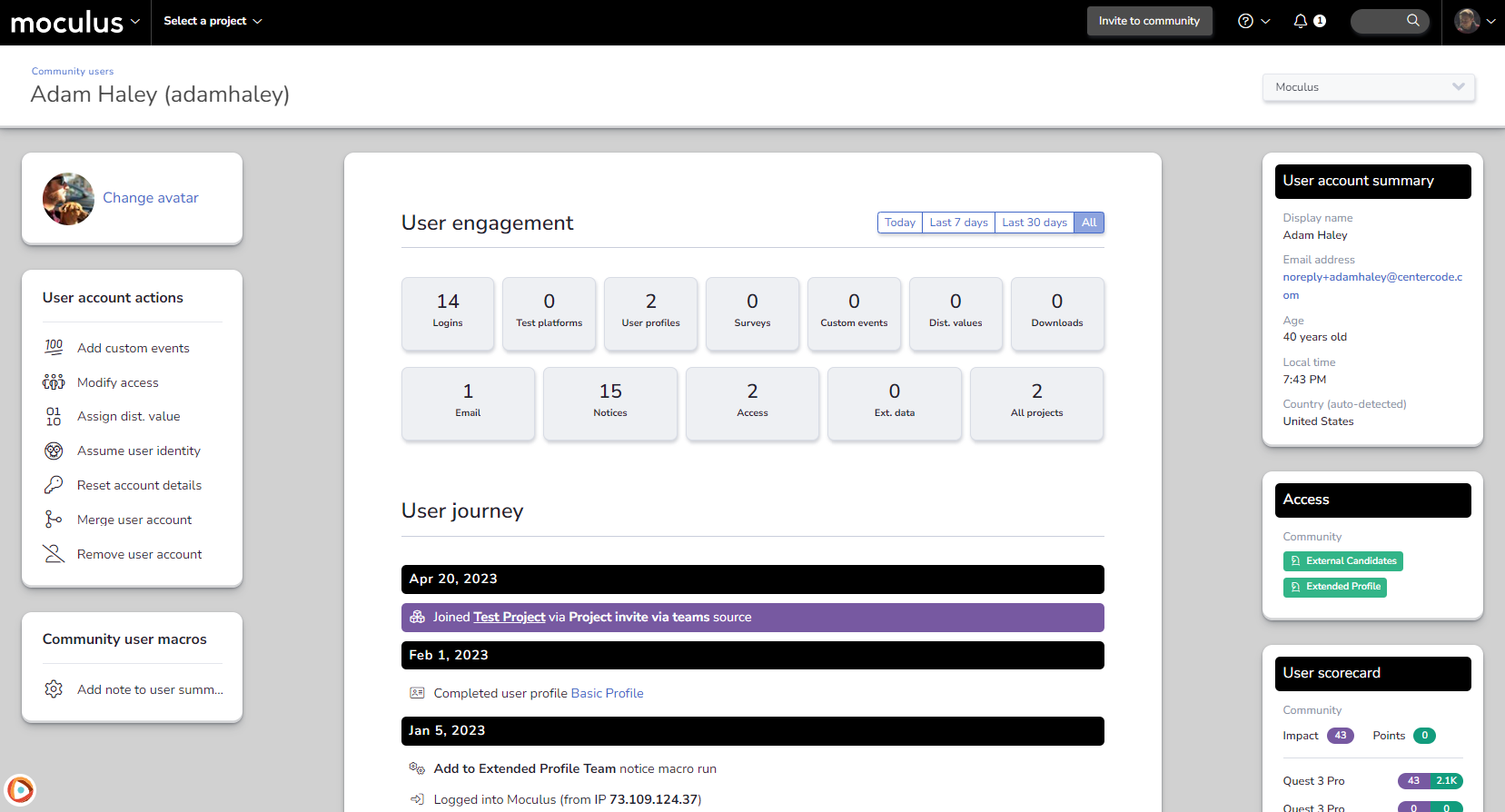
The first (and one of the most convenient!) item on the menu of improvements is the standardization and streamlining of the User Summary interface between the community and project levels. You’ll be able to swap between a user’s community profile, as well as each of your projects that the user is a member of, from a single page via the convenient drop-down menu! The information and options available to you will swap on the fly based on the scope and project you’ve selected. This makes managing and tracking user activity across multiple projects a snap!
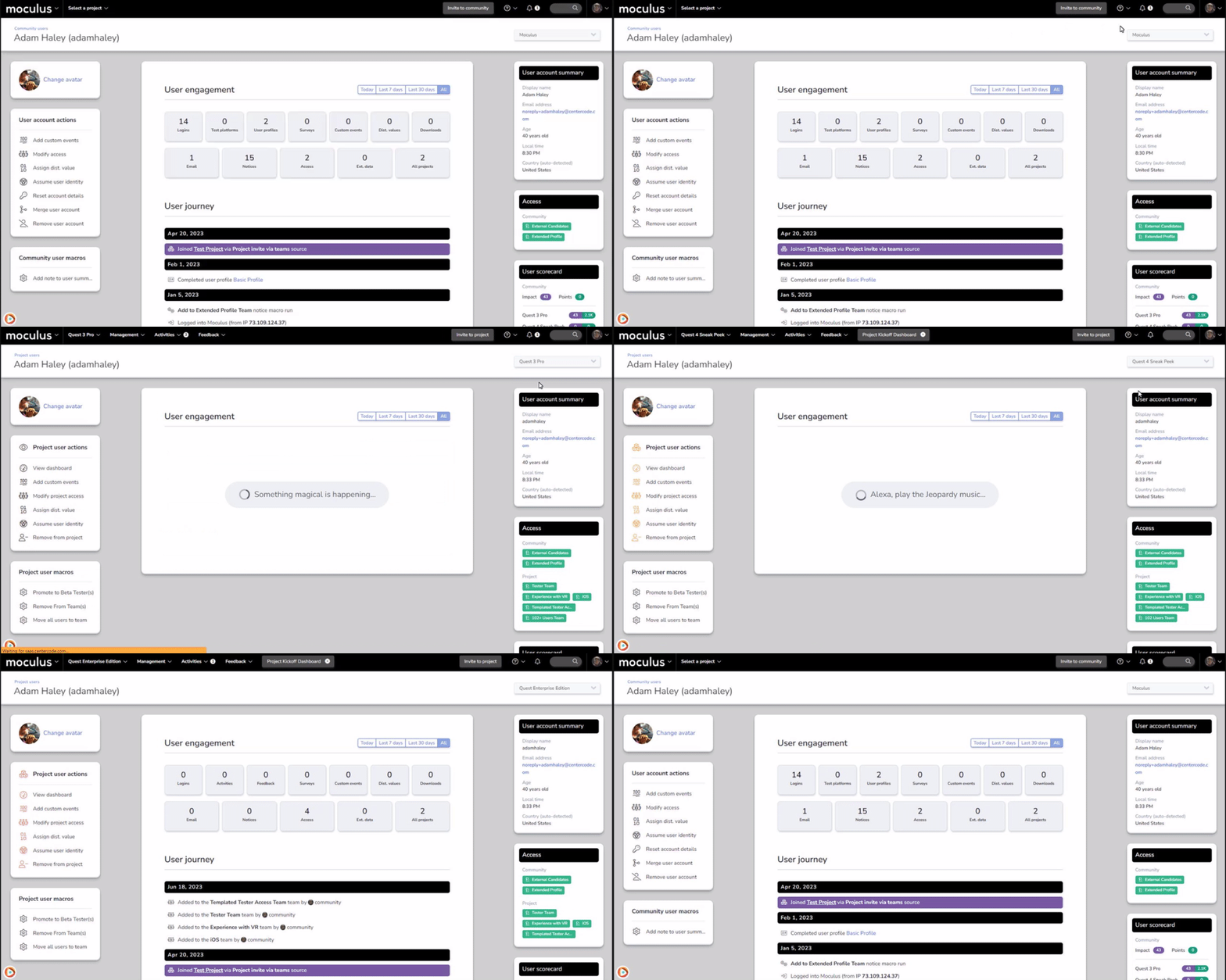
The summary pages on both scopes contain a list of user actions and data that, like a good potato salad, are both hearty and digestible. It's similar to the feedback ticket view you're familiar with: actions are on the left, while a summary is on the right. In the middle, you've got tons of detail about the user's activity that you can filter and manipulate with a few clicks.
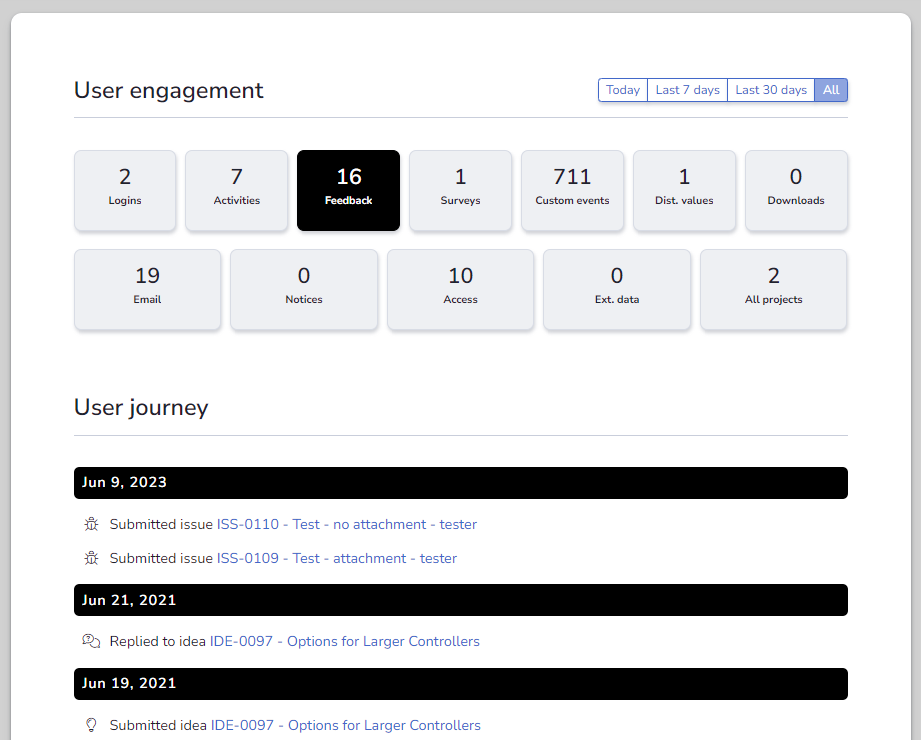
The next major improvement to the User Summary interface comes in the form of the new User Journey tool. User journey tracks and displays a huge amount of data about events and activities performed by (or on) your users. Even better, the presentation of this information is now standardized across the community and project scopes. The same community/project selection drop-down menu that lets you switch between scopes also gives you access to the information presented by the User journey, swapping dynamically based on the scope you're viewing. Finally, a series of clickable cards above the User journey will allow you to filter for the exact data you’re looking for, also updating dynamically based on your scope and the time period filter selected.
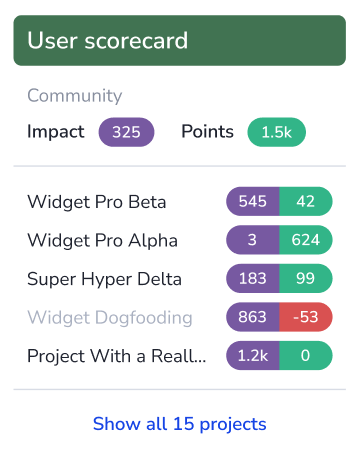
For dessert, we'd like to highlight the brand new User scorecard, which you'll see in the right-hand menu on both the community and project scopes. The User scorecard displays the Tester Impact™ score—a value automatically calculated by Centercode based on a tester’s level of engagement with impactful feedback (via submitting, voting, and replying to feedback within projects). It also shows user points, which you and other admins can grant via custom events (formerly known as rankings). Showcasing both a community score and the five most recently accessed projects (which can be expanded to show all), the User scorecard makes it easier than ever to identify and fully utilize your most dedicated testers!
These are just a few of the many features and improvements you’ll see in the new and improved User Summary update! We can’t wait for you to get in there and see all the ways this new tool will streamline YOUR tests. We’re pretty proud of this one, and we’d love to hear your feedback, so contact us at support@centercode.com to let us know what you think.
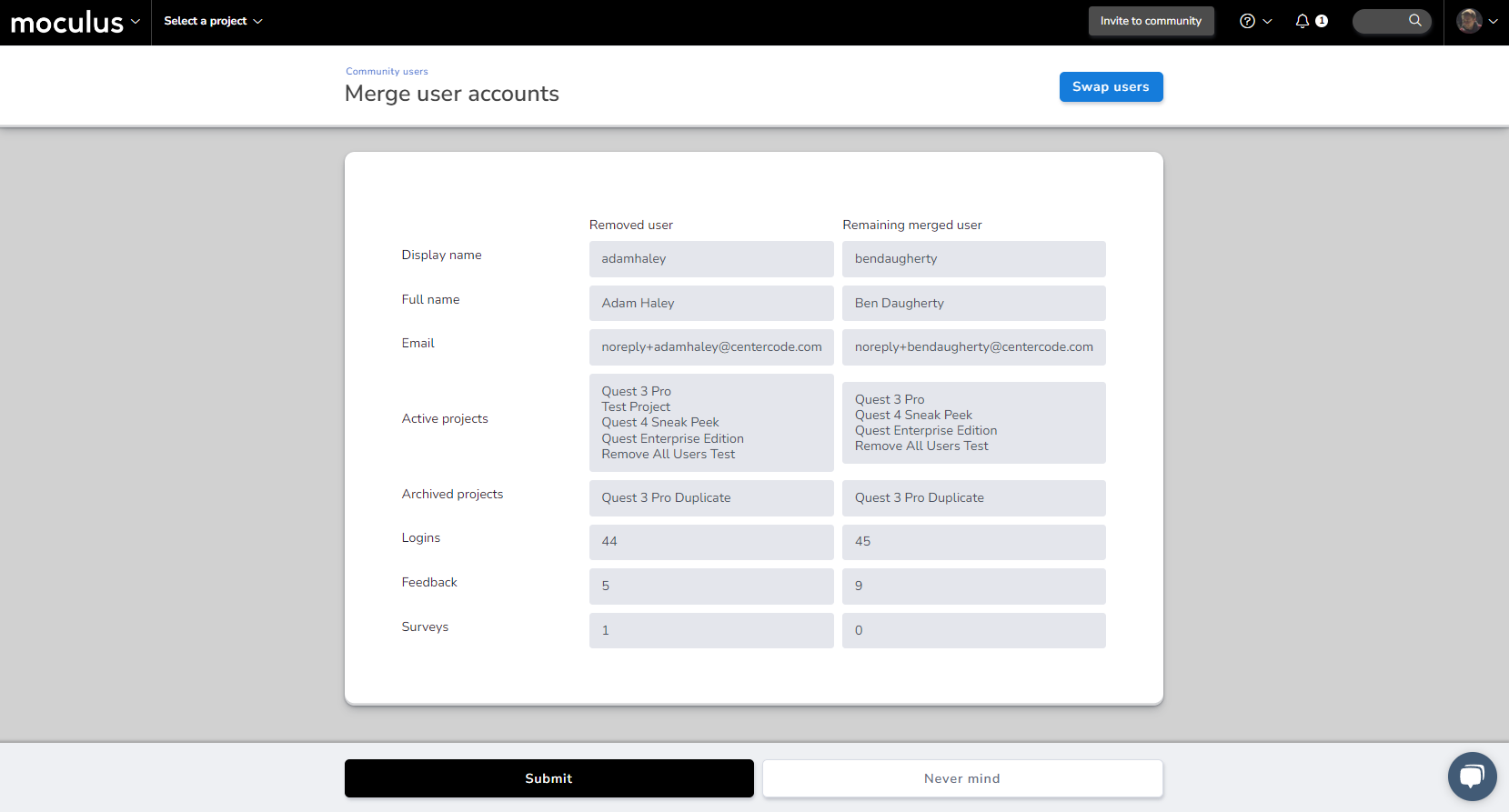
Next up, we’ve got a visual refresh for our Merge User Accounts tool. The Merge User Accounts tool received a bit of visual polish to bring it in line with the more modern look of the platform, and we’ve tweaked the data displayed about the user accounts you're merging to more accurately reflect the data community managers are concerned about when merging accounts.
And last, but definitely not least, we’ve added the ability to create a PII-safe version of the full name displayed within your projects. Complete instructions are available on our Knowledge Base, and feel free to reach out to our support team if we can help!
If you've been with Centercode for a while, you may have seen one (or a few) of the different ways we've referred to user scoring over the years. Its purpose has always been the same: helping you identify the superstar testers you want on future tests while calling out the ones you don't. But over time and dozens of releases, the names of these useful tools got muddied, making it hard to know what's what.
You spoke up about the confusion—and we listened. To complement our refresh of the User Summary interface, we've refreshed our user score language, cleaning out all the outdated vocabulary and inserting our new, more intuitive terminology that'll help our admins (that's you!) use these scores to their full benefit.
Finally, it's worth noting that all of these scores, points, and events are completely hidden from testers—although they could be shown via dynamic tags if you had a creative need for it! Hopefully, this inspires you to check out the User scorecard sidebar in the improved User Summary interface and to create your own custom user events!
Our June release is anything but gloomy! We’ve got some sunny new upgrades to our visual theme editor that make branding your Centercode as cool and easy as a summer breeze. And, as always, we've swatted several pesky bugs throughout the month, which are listed below.
" data-embed-image="https://i.vimeocdn.com/video/1684589199-9eb78812c5354cf33751124d441e3601a9cb9e7ba77b5863dc8ba5cb44bd60e5-d\_426" data-embed-signature="2ErefBx8tNWNdDGrF02lOFmhfpku2R87bqOqt7nHKwk" data-embed-url="https://vimeo.com/836608945">
Nothing sets the stage for Official User Testing Business™ like a beautiful, well-branded site. Giving your community and projects a polished and professional look makes testers feel like they're part of your team, which revs their excitement and actually increases participation. That's why, for our June update, we've reorganized and streamlined the Visual Theme tool to make creating and modifying visual themes easier than ever!
This update makes choosing your colors (and knowing where and how they'll appear on your site) a much more intuitive experience. We’ve reduced the number of selections you’ll have to make when creating a theme. Before, many options required manual color selection. Now, certain elements, like menu text, drop-down/fly-out menu backgrounds, and table headers, are determined automagically based on your menu bar color selection, so you can build a cohesive and readable theme in seconds!
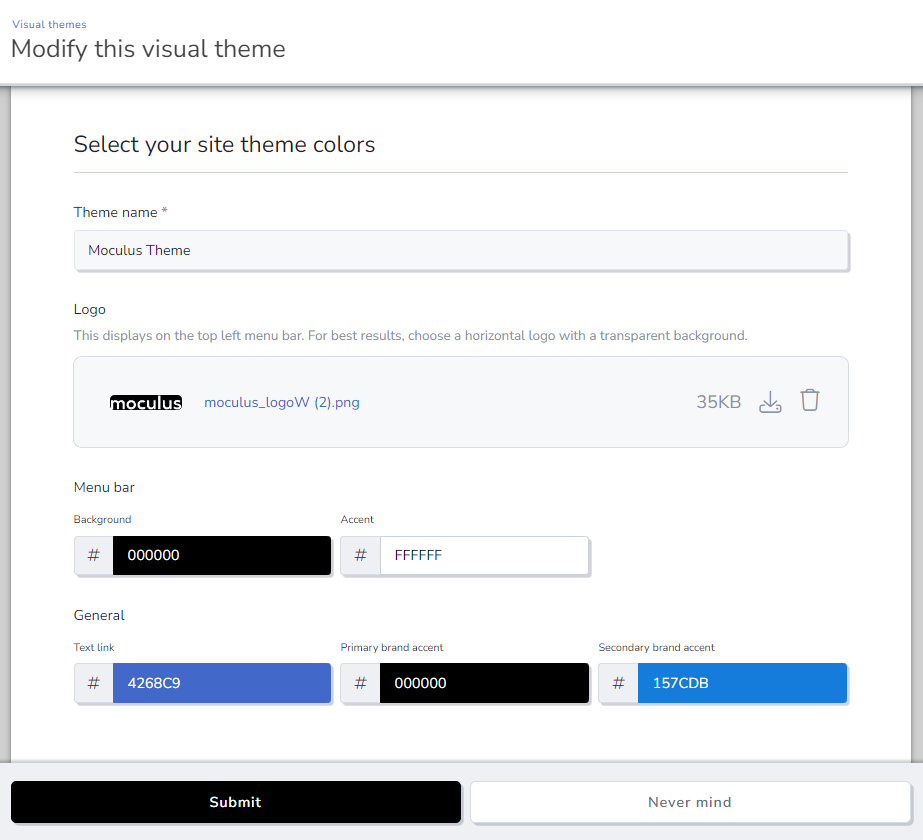
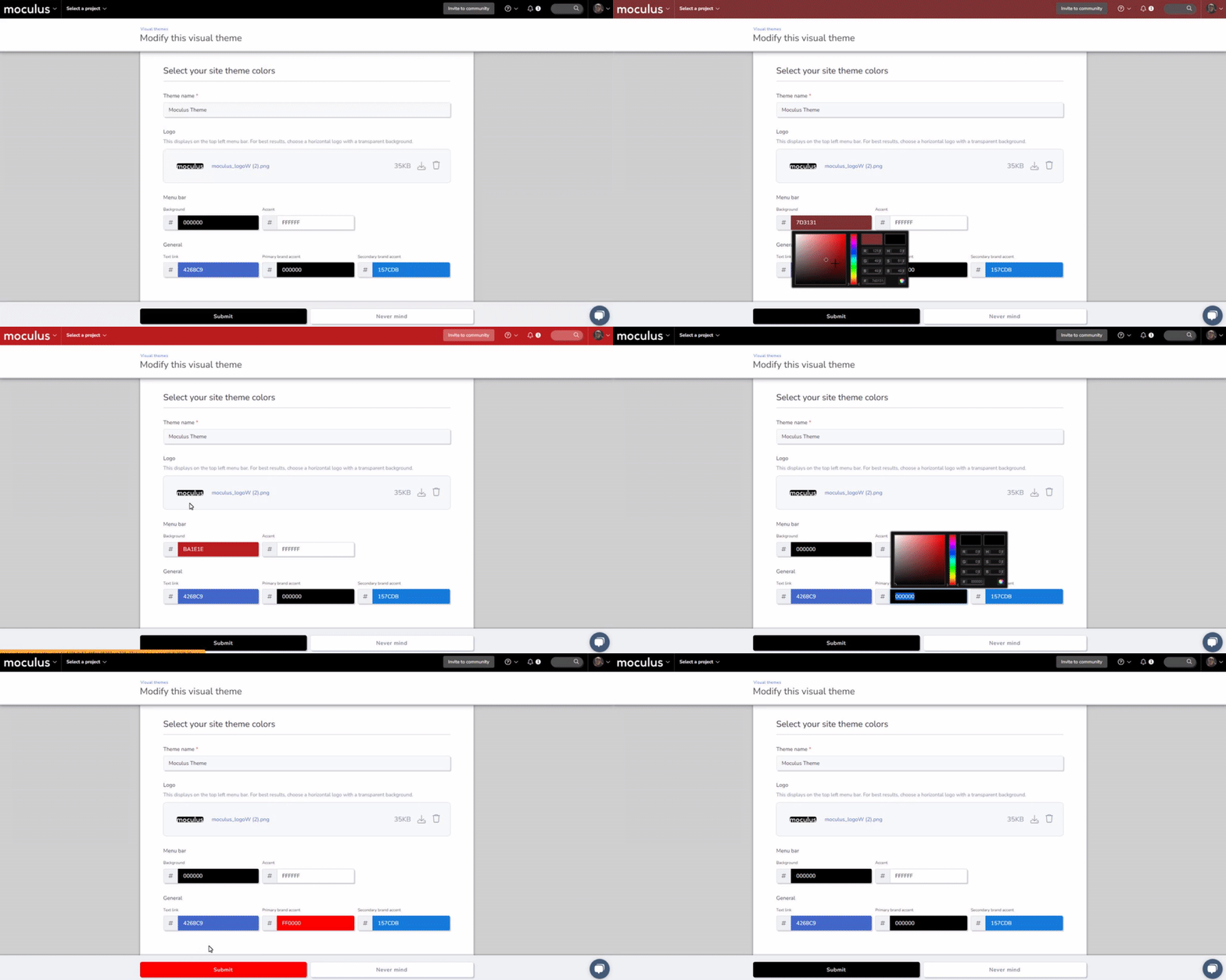
Additionally, we’ve added the ability to adjust and review your page background images and text color selections in real time, just make your changes and they’ll appear instantly on the visual theme page! (No more applying the theme to your live site to see the results 🎉) This also extends to the backgrounds for your site and landing pages. Simply select a background tint or image, and it will immediately apply to the preview window, making selecting appropriate text and link colors a breeze. Finally, you'll notice we've added several pre-loaded (and Centercode recommended!) background images. Definitely try them out—these backgrounds (handpicked by Luke 😀) will make your visual theme pop!
NOTE: While we have automated certain color selections that used to be available, you can still adjust these colors manually via custom CSS.
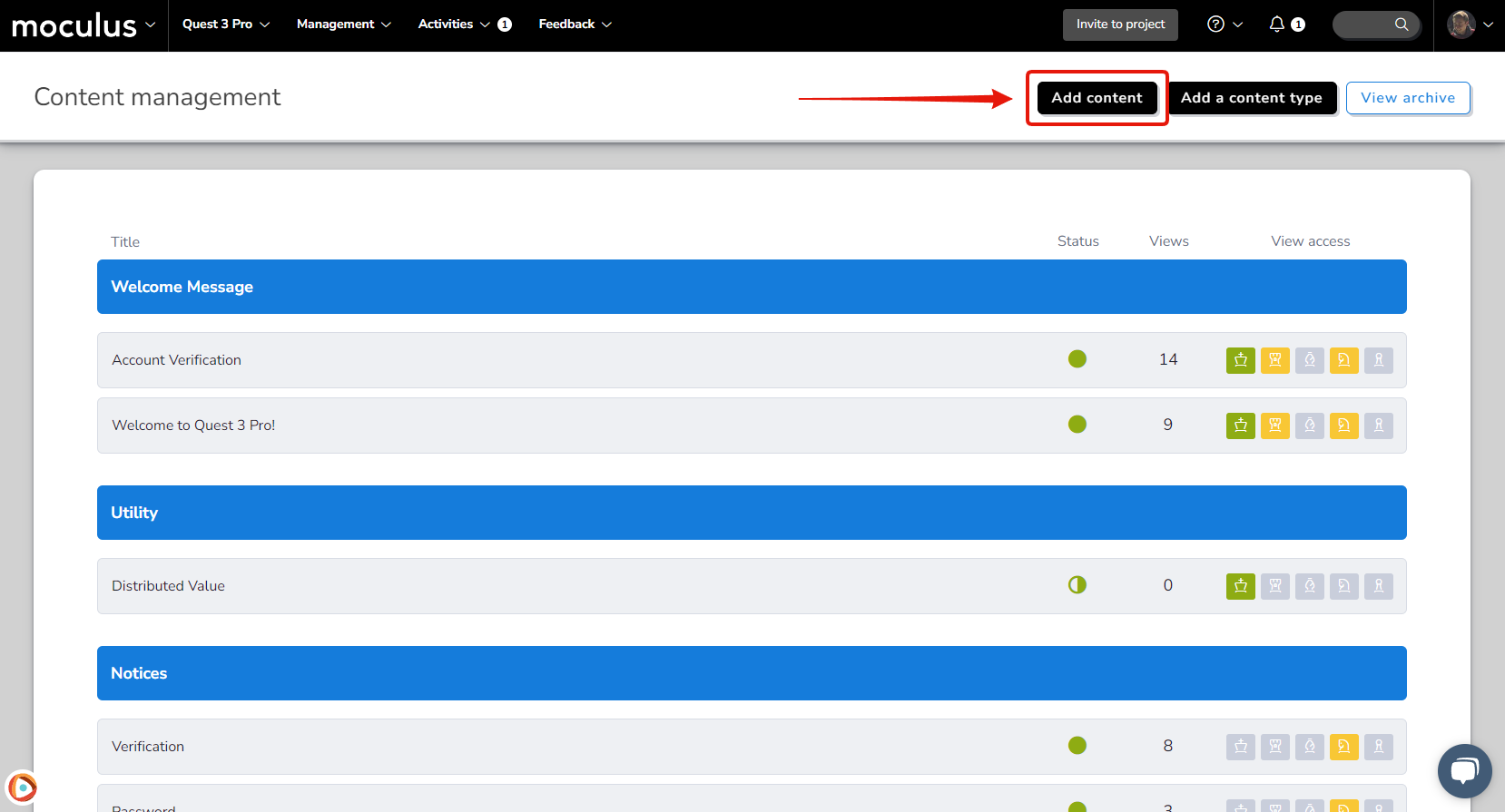
We’ve made a few small but impactful changes to our content and release management menus that make adding new resources as easy as pressing a (much easier to find!) button. The new “Add content” and “Add release” buttons located at the top of their respective management screens take you straight to the resource creation screens, where you can jump straight into creating your new masterpiece! And in case you preferred the previous method, hovering over a content or release type will still show you the “New content/release” button that you know and love.
It’s May, and that means it is time for another May-jorly exciting Centercode release (and a WHOLE lot of May puns, so buckle in)! We’ve got a couple big, new integrations features that May just blow your socks clean off, as well as some improvements to Ted’s admin-facing communications. And, as always, check out the list of bug fixes we've deployed throughout the month!
" data-embed-image="https://i.vimeocdn.com/video/1662230155-ee561bb6f731c3e7f982b1cd311a127a387bf5a9d63c2229e0dd9bc88a2e6078-d\_426" data-embed-signature="b76SL7fwolx21JXco5cMXdw7ztIkCJT95VhsyNH5kTR" data-embed-url="https://vimeo.com/821815209">
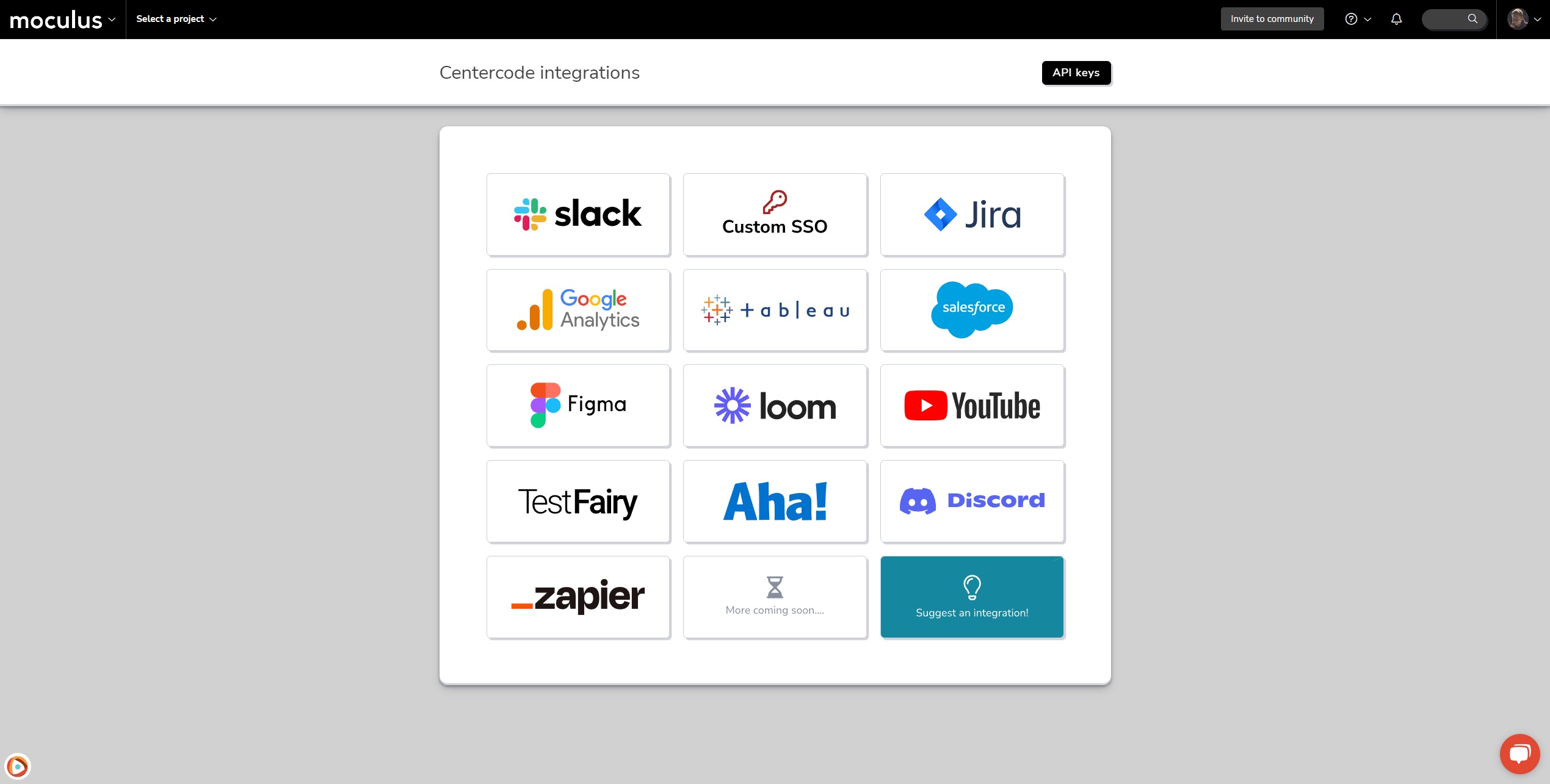
First up, we’re proud to introduce the Centercode Integration Center, a brand new tool to help you May-nage all of your various Centercode integrations! Our first class and API-based integrations are powerful tools that help push your testing to the next level, and we want to make accessing, managing, and learning about those tools as easy as possible.
This new menu (located in your Community configuration sub-menu) contains tiles that link to a variety of Centercode’s first-class integrations (like Jira and Slack), as well as step-by-step guides to some of our more popular API-based integrations (Figma, YouTube, etc). While this menu already contains an impressive list of options, there are more to come! We want to hear from you about what you’d like to see, so don’t hesitate to use the “Suggest an integration!” link to let us know what YOU would like to see added to this list.
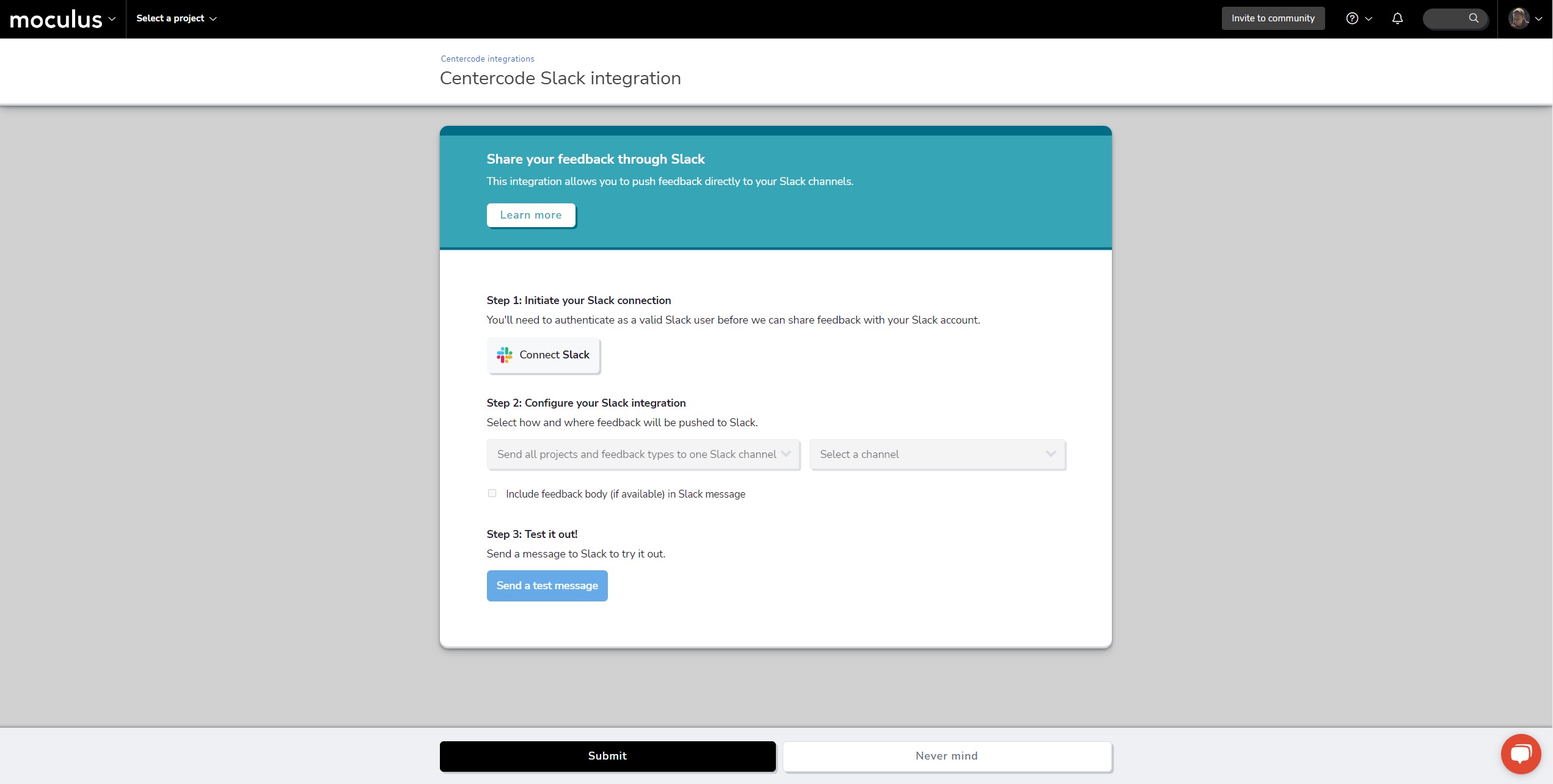
May-ke way for a brand new first-class Centercode integration: Slack! What better way to celebrate the introduction of the Centercode Integration Center than with a useful new tool to access through it? This handy new integration allows you to easily stay on top of incoming feedback by having Centercode send a Slack message whenever a new piece of feedback is created. You'll get a brief description of the new feedback submission, as well as a direct link for one-click access.
Setting up is simple—once you connect your existing Slack implementation to the site, you can configure which feedback types to send, and to which Slack channel you’d like to receive these updates. Maybe you want feedback submission across all your projects to feed into a single channel. Or maybe you'd rather split your feedback types into their own designated channels. Either way, you have a new tool in your toolbox that lets you choose what works best for your team and makes tracking feedback submissions in real time easier than ever.
We’ve been doing a little May-aintenance (last one, I promise) on everyone’s favorite testing assistant, Ted! While Ted’s daily scrum emails are already packed with useful data, we added one very basic but important bit of info: how many pieces of feedback were submitted during the period the email pertains to (daily, phase, or project closure). Additionally, Ted’s emails to testers will now always include the project name in the subject line, to avoid confusion for testers who may be in multiple projects!
Spring has officially sprung, and Centercode’s garden is positively blooming with a fresh batch of new features and improvements. And boy, do we have some exciting ones for you this month, folks! We’ve got some powerful new tools and a few convenient enhancements to our existing interface, all designed to make triaging your feedback faster and easier than ever before. And, as always, check out the list of bug fixes we've deployed throughout the month!
" data-embed-image="https://i.vimeocdn.com/video/1650275200-abc667f566ee9405cb805e3ce6bc3beeb6d9e615165c0c77ef07b1a8c459dae3-d\_426" data-embed-signature="P4a8oISyJoagEizdqcRR13Z9KQm3YnRyOxAmewxY0Aw" data-embed-url="https://vimeo.com/815500903">
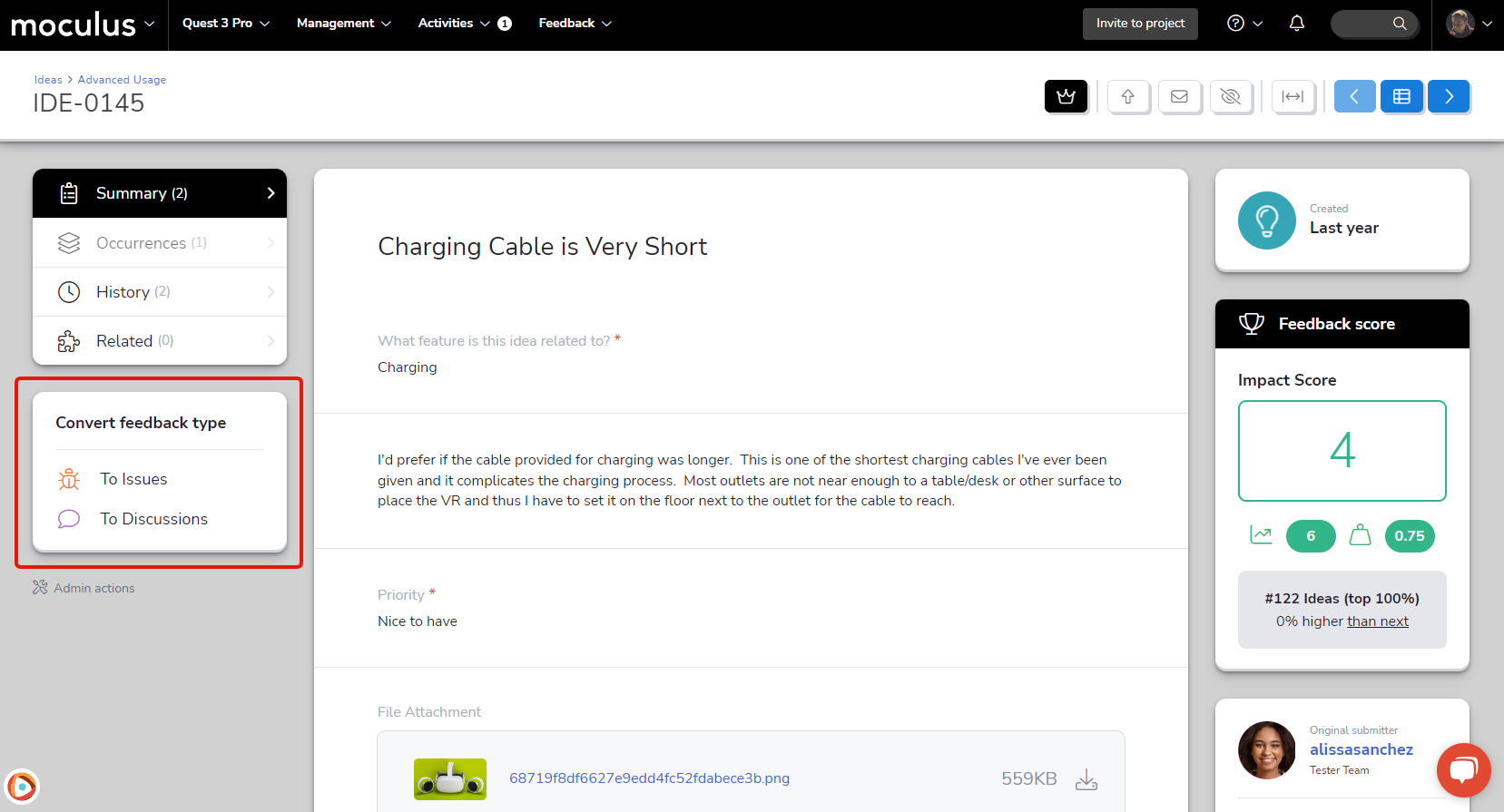
Drumroll, please! We’re proud to introduce our brand new first-class Feedback Type Conversion tool! The ability to easily convert one feedback type to another is one of our longest-standing and most requested features, and we think this new tool really knocks it out of the park! This simple but powerful tool allows you to move feedback from one type to another with a single click (and confirmation)!
Designed with simplicity and ease of use in mind, the feedback type conversion tool will bring over all of your critical ticket data without the need for any manual field mapping. Any fields not converted automatically will be stored in the ticket history, so no information will ever be lost. Additionally, the system will automatically notify the ticket submitter, letting them know their feedback has been converted to a new type so they can keep track of it. You’ll find these new options located in the right-hand menu, just below your macro list when viewing a ticket. It's also available in the new Quick Feedback Update tool, which we'll explain in the section below.
This one has been on a lot of your wishlists, and it took a lot of hard work and planning to get it where we wanted in terms of flexibility and ease of use. Once you’ve had a chance to get your hands on it, we’d love to hear what you think!
We’ve been making a lot of tweaks to the information presented in feedback cards, which you see when viewing your feedback in dashboards or the feedback simple list. You’ve let us know (emphatically!) that these two methods of reviewing feedback are an integral part of your daily workflows. This time, we’ve got one we really think you’re going to love: the Quick Feedback Update tool, which gives you the ability to take all kinds of actions on a ticket right from the feedback simple list or dashboard!
To access this new functionality, simply open the expanded view of any feedback ticket card, and click the new Quick update hyperlink. This link will present you with a drop-down list of a huge variety of actions, including status updates, macros, and even the new feedback conversion tool mentioned above! You'll also be able to quickly reply to a ticket from the card itself (both as a single action or in addition to one of the previously mentioned actions). We love giving you solutions that increase functionality and reduce friction at the same time!
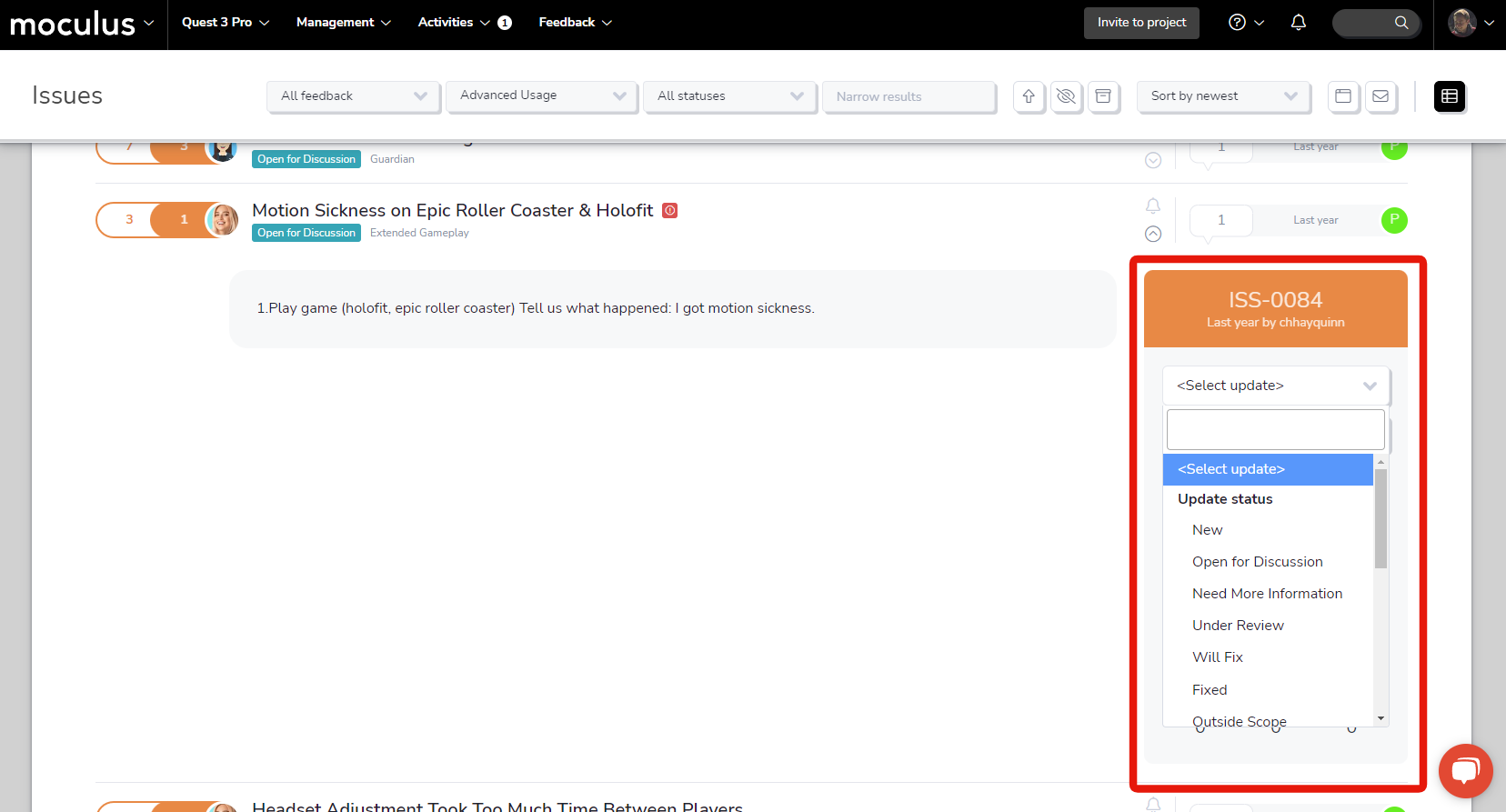
Note: Having full access to the new quick update menu requires having full access to the ticket itself. This means that you'll only see the full list of actions if you already have the ticket checked out. However, keep reading to learn about another awesome new feature developed in tandem with quick update that will really unlock the full power of this tool!
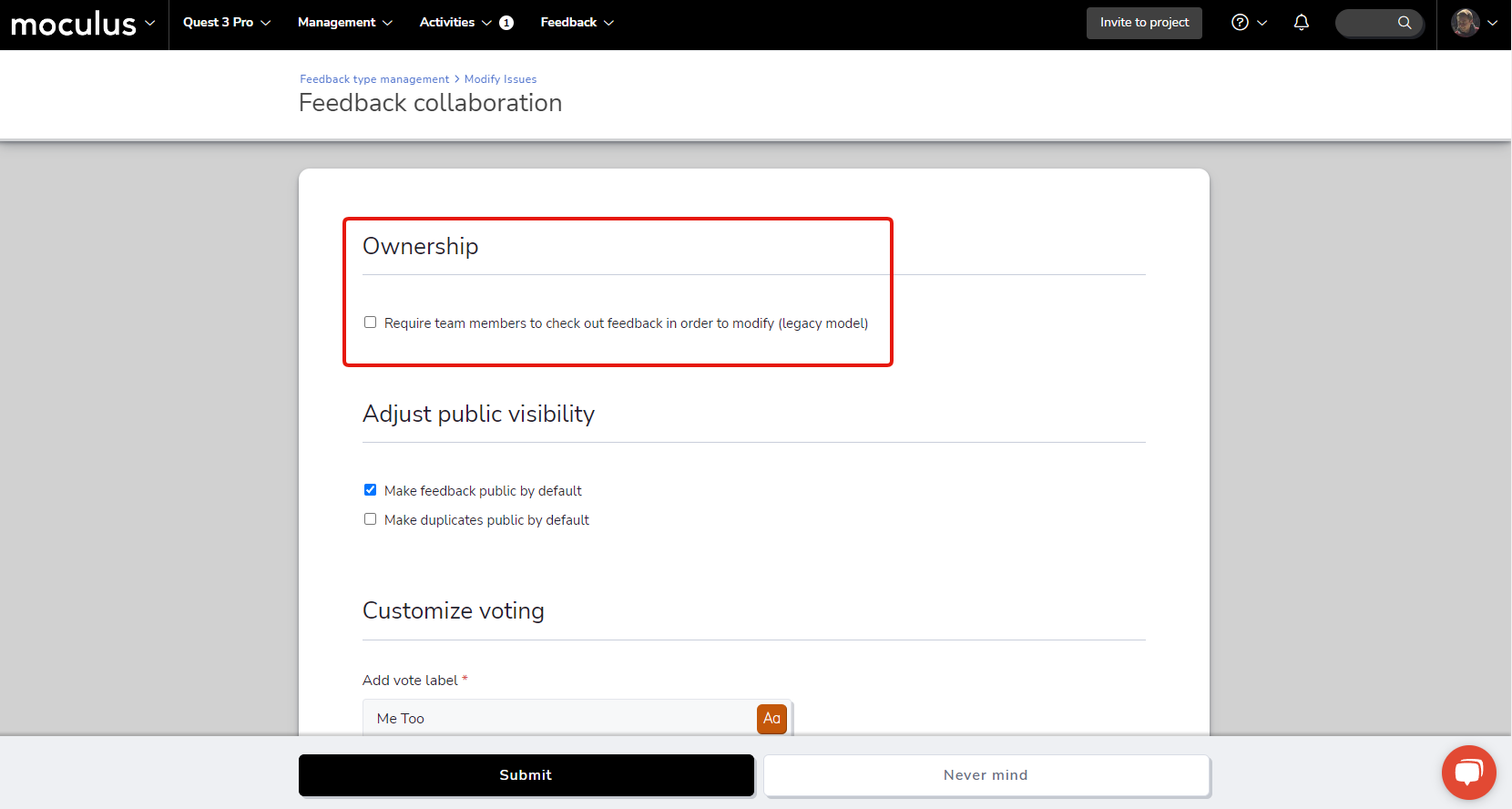
Sticking with the trend of streamlining the feedback triage process, we’ve got an (optional!) simplification that removes the need to take ownership of (or “check out”) a ticket before making edits. We’ve added an ownership section to the top of the Feedback collaboration settings menu within each feedback type, which contains the new checkbox “Require team members to check out feedback in order to modify”. Leaving this box unchecked means that any user who is a member of the feedback owner team can make edits at will, without taking direct ownership of the ticket!
Note: All existing feedback types will automatically have access to this new functionality! If you would like your existing projects/feedback types to function the same as before where checking out/owning the feedback is REQUIRED to make edits to a ticket you will need to enable the “Require team members to check out feedback in order to modify” checkbox in the feedback collaboration settings for each of your existing feedback types.
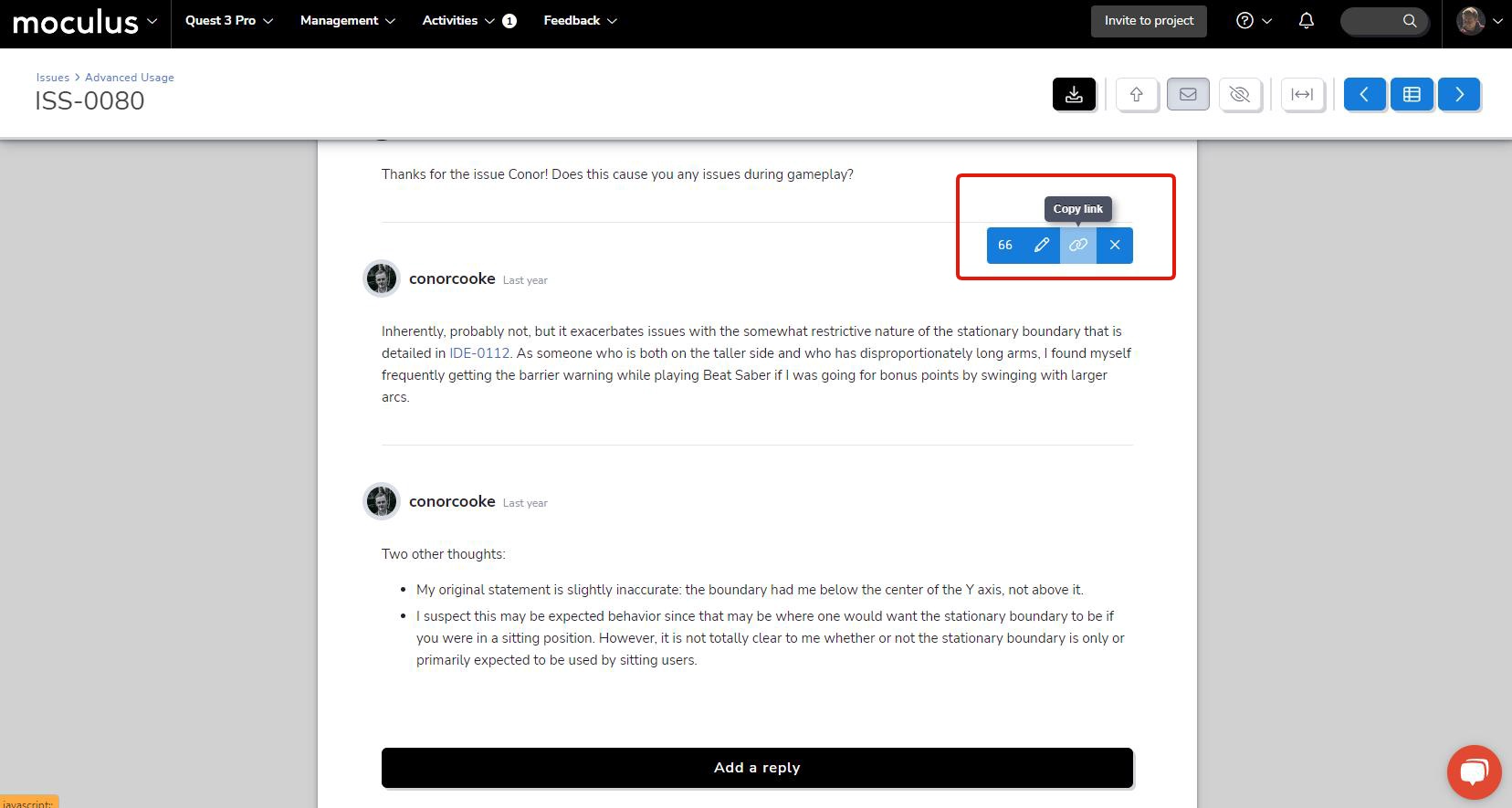
Next on the list, we’ve got a new addition to our feedback reply toolbar that makes locating and sharing user replies easier than ever before! The new "Copy link" button allows you to create a link directly to a piece of feedback that will highlight and automatically scroll to the linked reply (as well as load the appropriate page of replies, if applicable). Whether you’re directing your triage teams’ attention to a specific reply, or requesting an update from a user regarding a previous reply, this new button will make pointing users right where they need to go a snap!
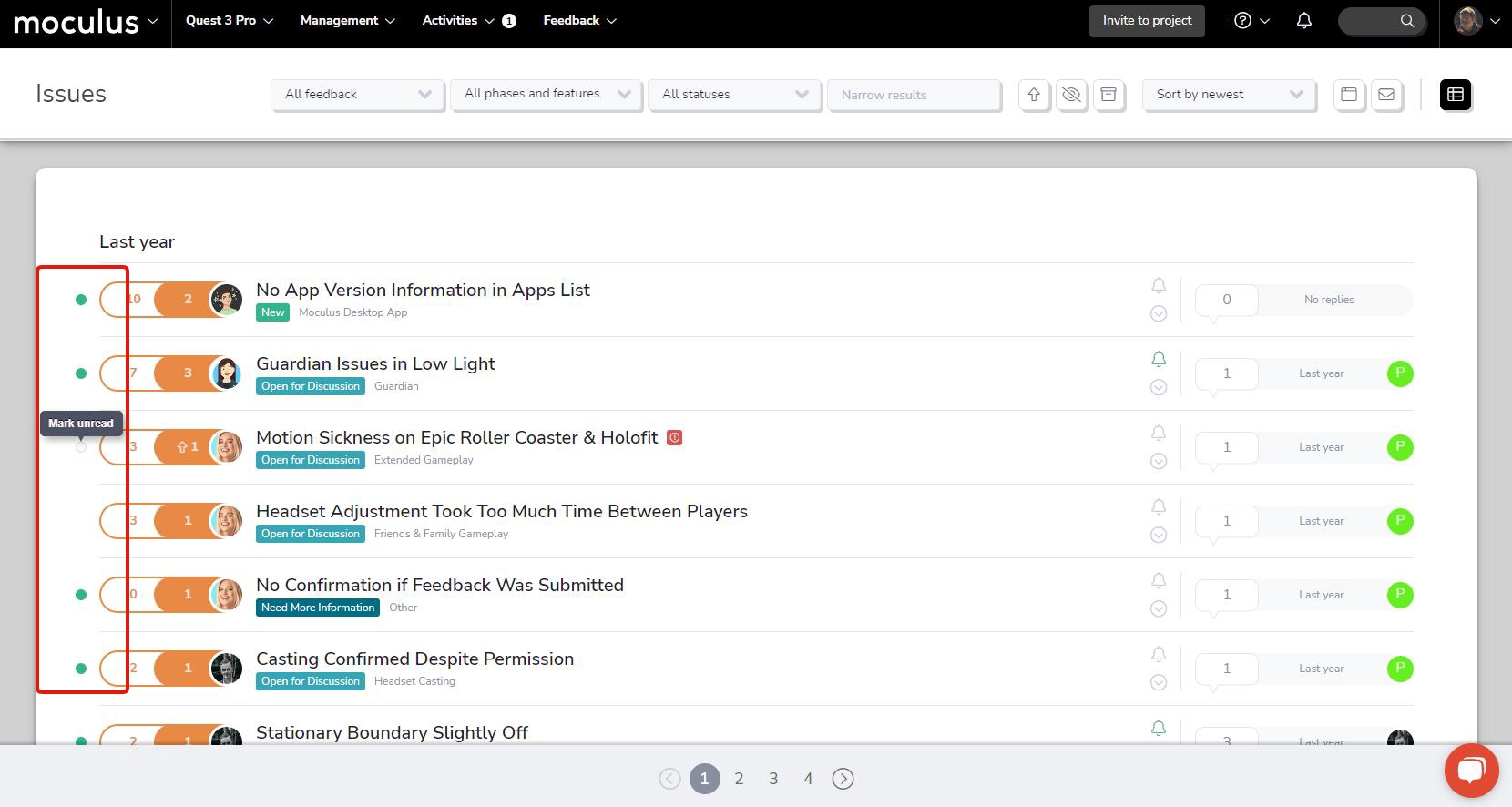
And finally, we’ve got another addition to the ongoing list of feedback simple list tweaks and improvements. This time, we’ve added a bit of interactive functionality to the “New” indicator icon, allowing you to dismiss it without manually viewing the associated ticket. This change additionally allows you to re-mark a ticket as new if you’d like to remind yourself to check in on it later. This simple but impactful change gives you a lot more control over which pieces of feedback you’d like to keep a closer eye on, all without navigating out of the feedback simple list!
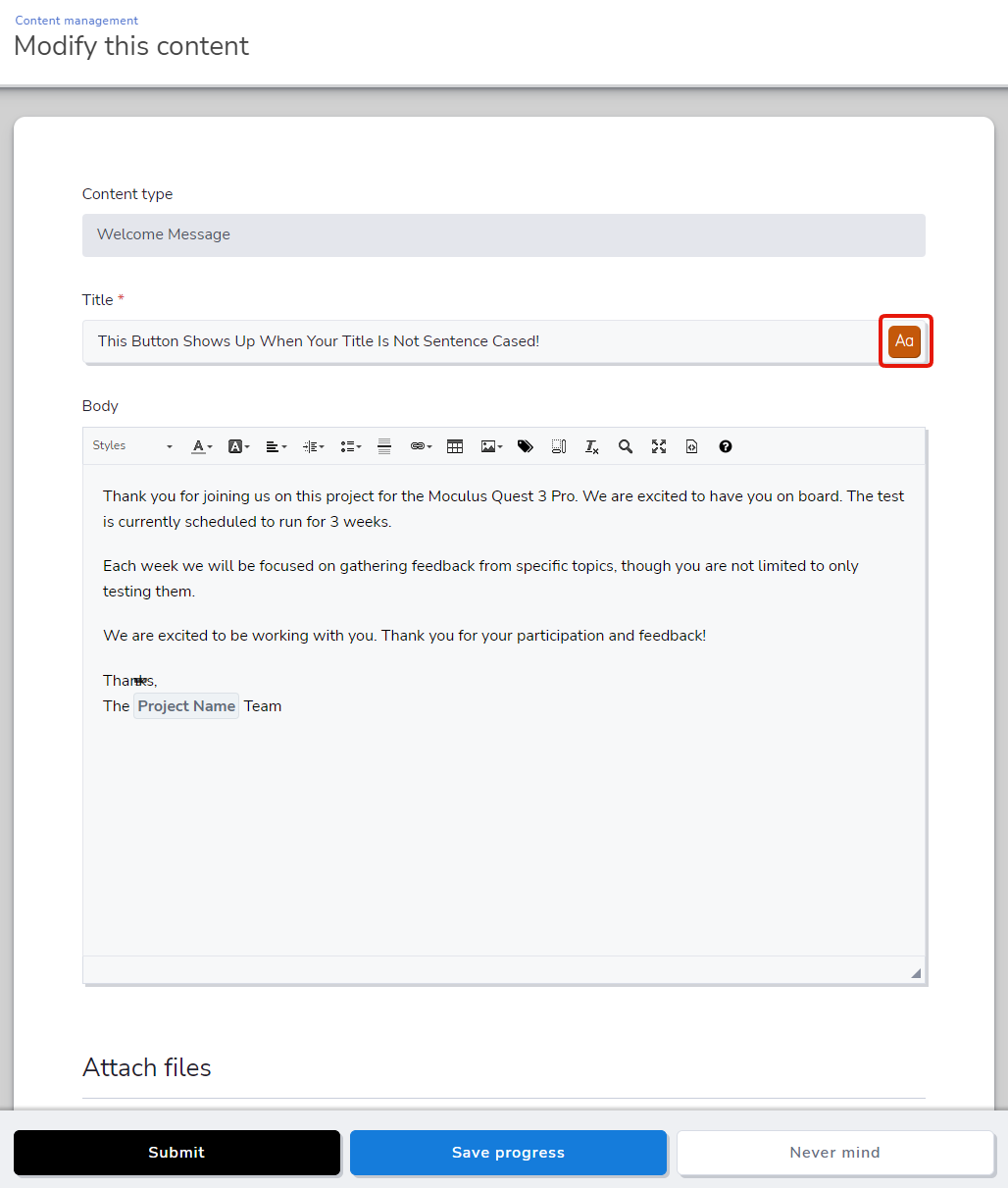
We've updated the platform to use sentence case for all of our text! Instead of seeing a mix of title case, sentence case, and ALL CAPS, this change displays text in a way that's consistent, scannable, and easier on the eyes.
Unlike title case, which has many different capitalization rules and variations, sentence case is simple and intuitive: the first letter of the first word is capitalized, while the rest of the words (except for proper nouns and acronyms) are lowercase. Because it resembles the way we write, sentence case is more natural to read and scan in English, making it easier to retain information. The uniformity of lowercase letters also reduces visual clutter, which improves navigation and helps important info stand out.
While the change might take some getting used to (especially if you've been with Centercode for a long time), we hope it makes communication in Centercode more effective for you, your teams, and your testers!
Connected to the sentence case update, we've added a nifty little feature that makes sentence casing feedback summaries and other title fields refreshingly simple. The Case Tool button appears on the right edge of a title or name field when it detects a capitalized word in the middle of a phrase. Clicking this button automatically sentence cases the text inside—meaning you no longer need to install a Chrome extension or wear out your eyes manually casing word after word. In addition to recognizing ALL CAPS as acronyms, it recognizes your company name, community name, and project name as proper nouns and keeps them appropriately capitalized.