🔐 Enter Your Jira Token Once, Not Once Per Project
Centralized Jira connections are graduating from GoEarly to production sites. If you've ever configured the same Jira instance across ten different projects, this one's for you. A community admin sets up each Jira instance once, and project admins pick it from a drop-down. Your existing project-level Jira setups keep working exactly as they are.
One Jira Connection, Every Project That Needs It
Jira credentials used to live inside each project's external destination, per feedback type. Same instance URL, same username, same API token, re-entered for every project that needed it. Rotating a token meant touching each project by hand. Now a community admin configures the Jira instance once in the Integration Center, and every project pointing at that connection inherits the change.
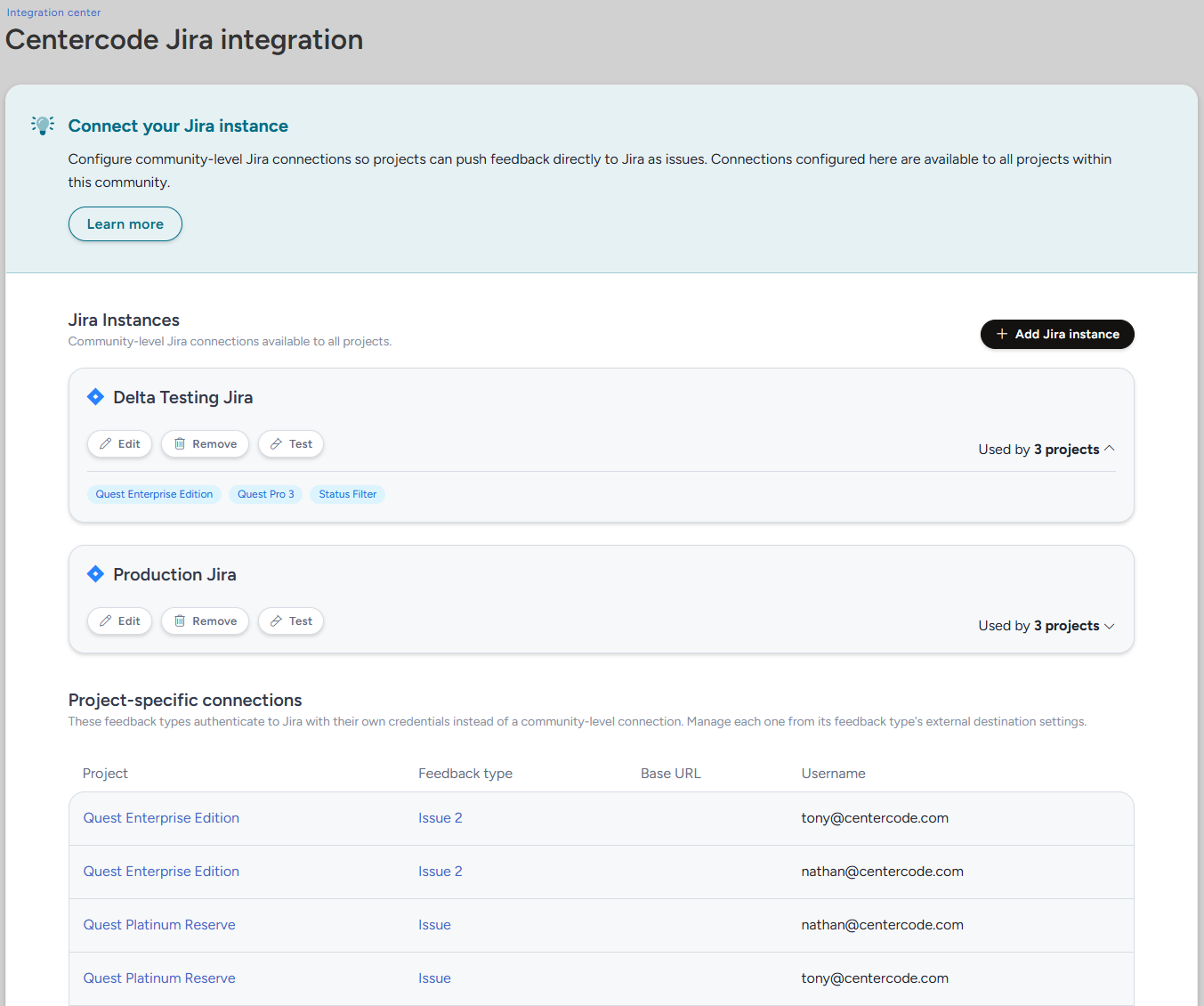 Each connection stores an instance name, a base URL, an authentication scheme (basic with a username and API token, or bearer with a personal access token), and the credentials themselves, encrypted at rest. You can set up as many instances as you need, so an engineering Jira and a support Jira can happily coexist.
 Every connection card has a Test button. Select it and we call Jira, then show you the list of Jira projects those credentials can actually reach, 30 at a time. It's a quick confirmation rather than a project browser, and it catches the situation that generates the most support tickets today: a token that authenticates perfectly well but lacks the access the sync needs downstream. A successful test shows a green Connected badge. A failure shows a red Connection unsuccessful with the reason in plain language, like Token expired or Could not reach Jira at this URL. Save credentials without testing them and the card sits at Untested until you do.
Each card also shows a Used by # Centercode projects count that expands into the actual list, so you can see who depends on a connection before you change it. A footnote records who edited the connection last and when. If you remove a connection that's still in use, we tell you how many Centercode projects will break and let you decide whether to continue. Those projects reset to Select and their Jira sync fails on the next attempt, which is the signal for their admins to pick something new.
 In a project, the authentication fields on the Jira external destination are replaced by a Connection source drop-down. It lists your community's connections alphabetically, with Project-specific connection at the bottom. Choose a community connection and the instance details display read-only, so you go straight to the JSON mapping without hunting down a token. For a one-off integration, like a contractor's Jira account, choose Project-specific connection and enter the base URL, authentication scheme, and credentials the way you do today.
 Switching between the two is safe in both directions. When you move a project from its own credentials to a community connection, the original credentials stay put behind the scenes, obfuscated. If that community connection later disappears, flip back to Project-specific connection and everything you entered is still there waiting.
Important note: Nothing migrates on release day. Every existing Jira external destination lands on Project-specific connection with its current credentials intact, and Project-specific connection isn't going anywhere. Opt in to a community connection on your own schedule, or don't. Your JSON mapping and field configuration behave identically either way. For the full setup walkthrough, see our Guide to Centralized Jira Connetions.
---
Dynamic Tags Get the Same Picker as Everywhere Else
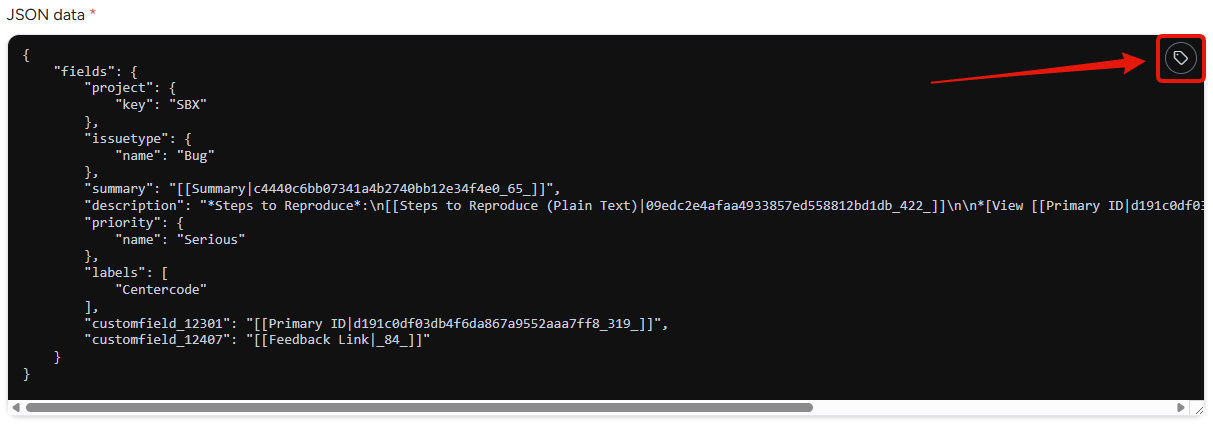 The old inline drop-down for inserting dynamic tags into the JSON editor is retired. The dynamic tag button now opens the same search modal you already use elsewhere in the platform. Park your cursor in the JSON, open the modal, add the tags you need, close it, then move them where they belong.
Dynamic tags are a one-and-done setup task, so the extra click buys you a picker that works the same way everywhere.