📋 Report Elements You Only Have to Build Once
You've probably built the same chart more than once. You get a feedback trend or a tuned AI summary looking right in one report, and then you need it in the next one. Until now, that meant rebuilding it by hand and squinting at the original to make sure they match. Starting today, you can pull a finished element in from another report, or duplicate one right where it sits, and spend your time on the parts that are actually new.
Clone Report Elements Instead of Rebuilding Them
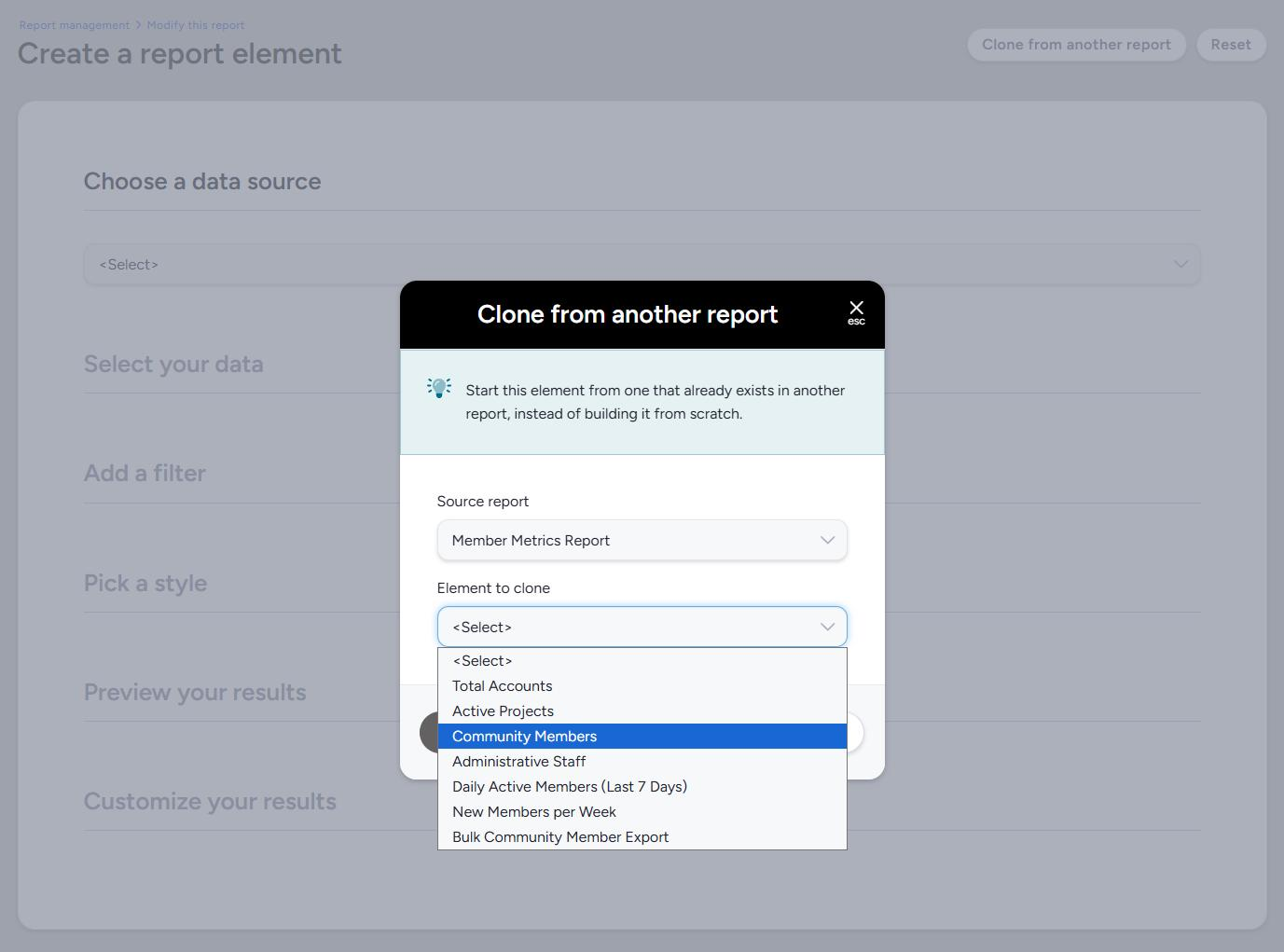 Report elements take real work to get right. You pick the data, build the filter, choose the style, and maybe write an AI prompt worth keeping. Once you've done all that, you shouldn't have to do it twice. Report element cloning gives you two ways to reuse what you've already built.
Clone from another report. When you create a new report element, look for Clone from another report at the top of the element editor. Pick a Source report, then pick the Element to clone, and click Clone this element. The element's whole configuration loads into the editor: its data, its view, its own filter, its style, and any AI prompt settings. Nothing is saved yet. Review it, rename it if you like, and submit it when it looks right. If you back out, the report you're building stays exactly as it was.
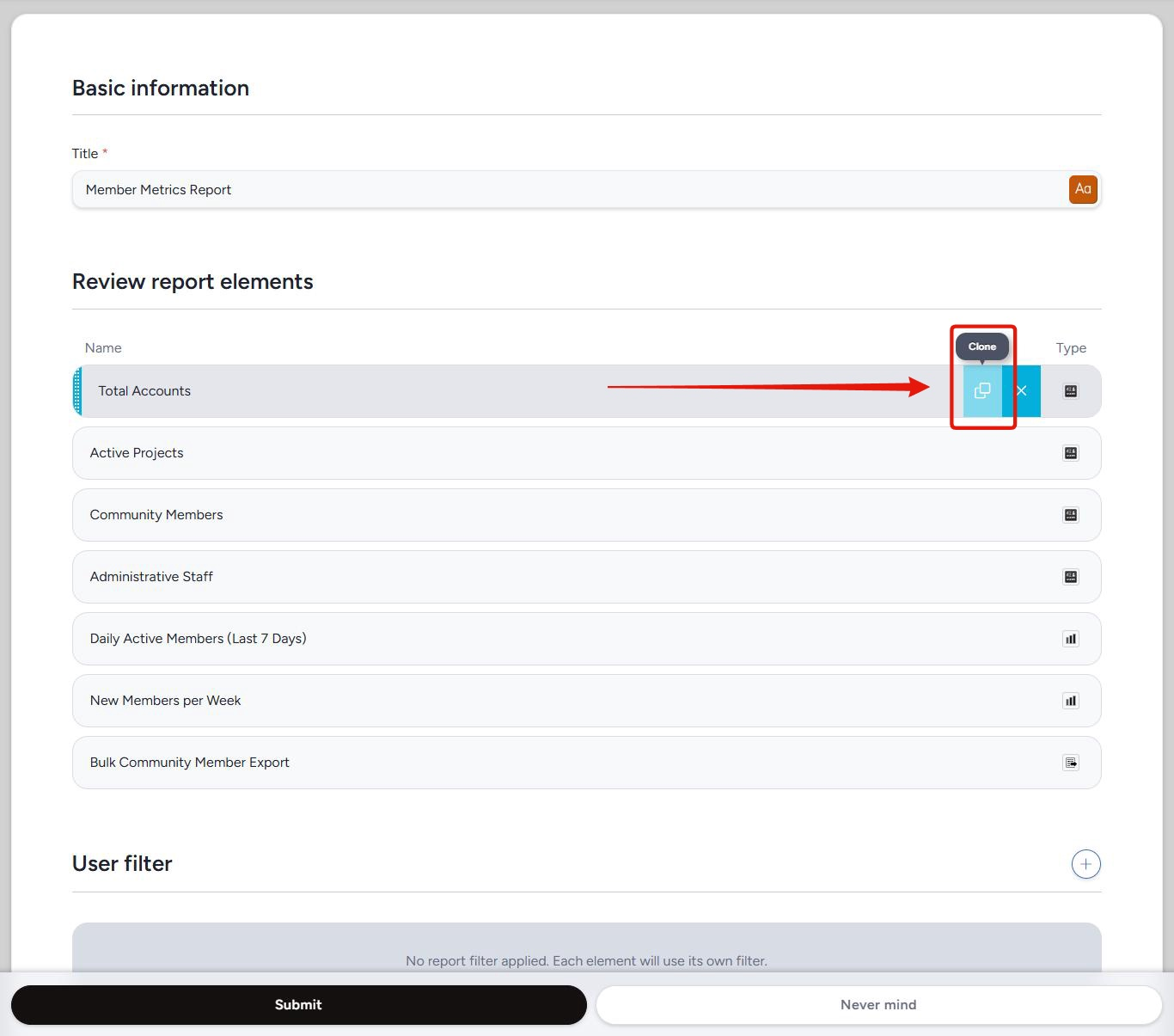 Duplicate in place. Want a few variations of the same chart in one report? Hover any element on the Modify this report page and click the clone control next to remove. A copy drops in directly below the original, and everything beneath it moves down one spot. The copy keeps the original's name exactly. We didn't add "(2)" or "Copy of" to the name, because those labels pile up fast once you've made a few copies. Rename it whatever makes sense.
Either way, the copy is its own element from then on. Change it, move it, or remove it, and the original doesn't notice.
A few things to know before you start cloning:
- Same level and same kind. Project reports clone from other reports in the same project, and community reports clone from other community reports. Standard reports clone from standard reports, and API reports from API reports. Cloning between projects isn't supported.
- Only reports you can edit. The source list shows active reports you could already open and modify. If a report isn't in the list, it's archived, the wrong kind, or one you don't have edit access to.
- Report-level filters win. If the report you're cloning into has a report-level filter for that kind of data, the copy uses it. A filter that belonged to the source report's report-level setup stays behind.
- Copies start empty. A cloned element arrives fully configured but shows no data until the report next runs. Refresh the report and your results show up.
- Save before you duplicate. Duplicating reloads the Modify this report page, and any unsaved changes on it, like a half-typed report title, are lost.
- AI elements need AI. Cloning an AI response element requires an active AI data analysis license.
- API access isn't copied. A cloned data package or record lookup element gets its own key and doesn't inherit the original's API access. Grant access to the copy before an outside system can reach it.
For the full walkthrough, see our Guide to cloning report elements.