🔀 Project Home, In the Order You Want It
Every project has its own idea of what participants should see first. Some lead with feedback, some with activities, some want a briefing before anything else happens. Until now the platform picked one order and everyone lived with it. Starting today, a project admin drags the sections of Project Home into whatever order fits the program, clicks Save, and every participant sees it that way.
Drag Your Project Home Into the Order That Fits
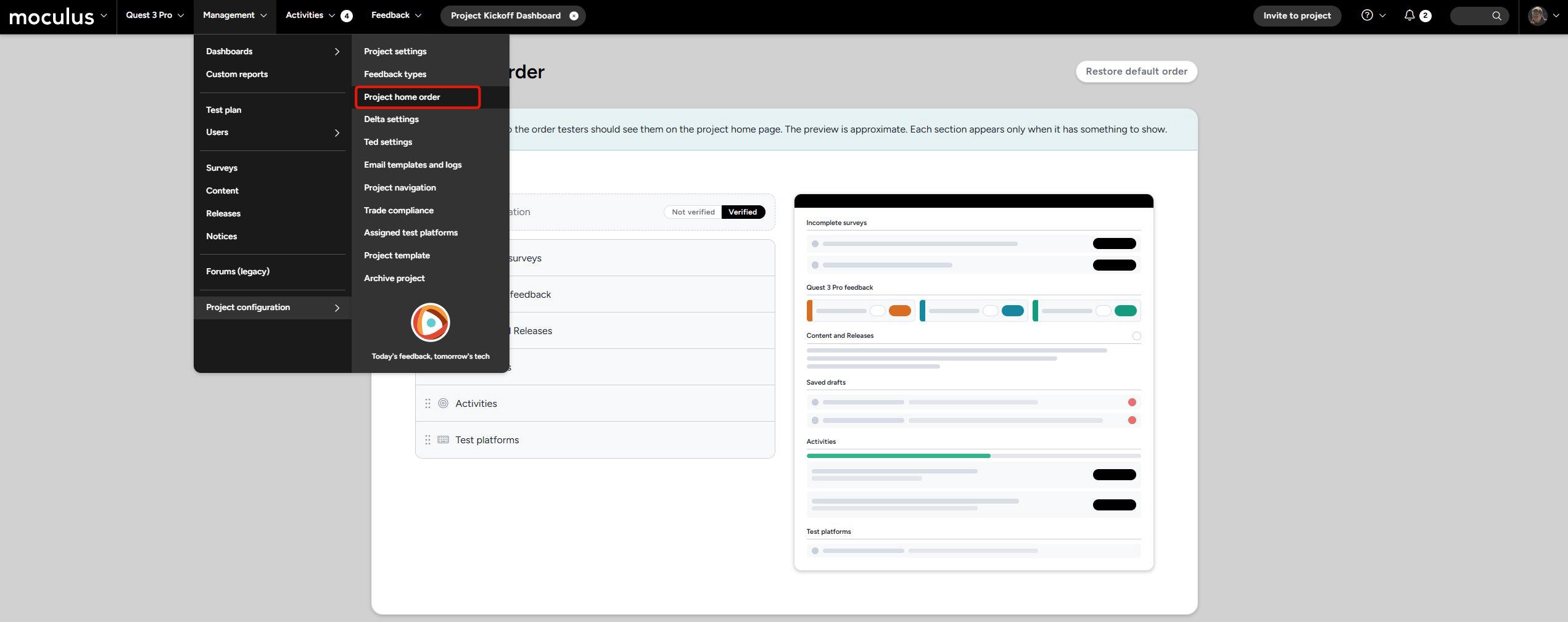 The Project Home has always rendered its sections in a fixed sequence we chose. That worked fine until it didn't. A hardware program that ships units wants Activities up top to drive completion. A research team wants Feedback first, because collecting it is the whole point. A project that briefs participants before anything else wants Content leading. One order was never going to serve all three.
The new Project Home Order page lives under Management > Project Configuration. It lists the sections of the Project Home as a vertical drag-and-drop list, each row labeled with its name and a short description. Drag them into the order you want and click Save. There's no save-on-drop here, deliberately, because the change reaches every participant in the project. If you want to start over, Restore default order snaps the list back to the platform default.
Six sections are reorderable: Content, Feedback, Drafts, Surveys, Activities, and Assigned Test Platforms. Release announcements aren't a separate section, so they move wherever Content moves. The Content stream travels as one block, which means individual content items stay in their existing sequence within it.
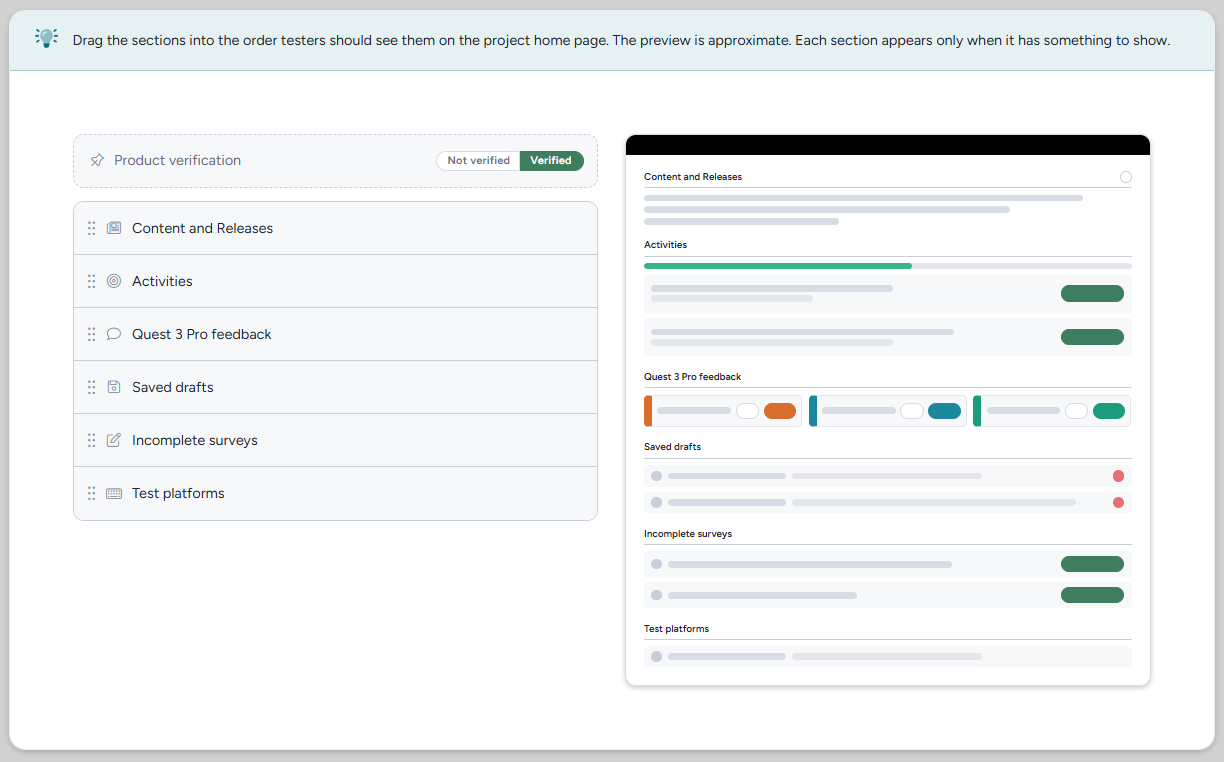 One saved order applies to everyone in the project, and the same order drives desktop and mobile. Each participant still sees only the sections they're entitled to, arranged the way you set them. Sections with nothing in them keep hiding themselves exactly as they do today, and they hold their configured position for whenever they do have content. You'll never end up with an empty placeholder just because you moved something.
The order is part of project configuration, so it travels on clone. Set it once on a template and every project cloned from that template starts with your layout already in place. That's the fix worth knowing about if your answer to "we don't like the default order" needs to apply to more than one project.
Important note: nothing rearranges on its own. Every existing project keeps rendering exactly as it does today until an admin opens the page and saves a new order. The config page shows your current order as its starting point, so opening it to look around changes nothing. For the full walkthrough, see our Guide to setting your Project Home order.
---
Product Verification Moves to the Top
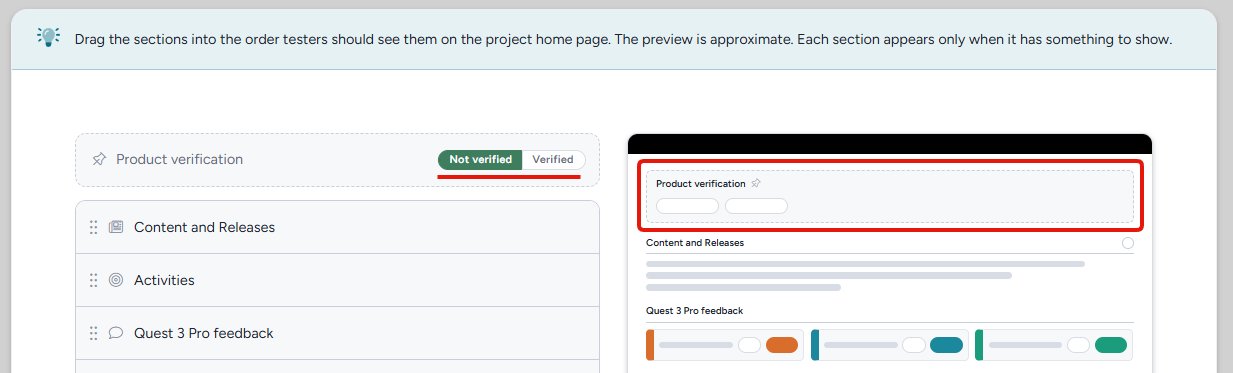 Product Verification isn't one of the reorderable sections. It's pinned, and as of this release it's pinned to the top of Project Home rather than sitting below Feedback. If your project uses Product Verification, this is the one thing that looks different on release day without anyone touching a setting. If your project doesn't use it, nothing moves.
The reasoning is straightforward. Product Verification asks participants to confirm they've received the test unit, and it gates their access to activities and feedback until they answer. A question that blocks everything else belongs above everything else.
On the Project Home Order page it appears as a locked row in its fixed position, with a short explanation of why it can't be dragged. We show it rather than hiding it so you can see where your reordered sections land relative to it.
It's worth being clear about one thing: the gate is logical, not positional. Activities stays hidden until a participant answers the product-receipt question, no matter where you put Activities in the order. Reordering changes the visual sequence and nothing else. You can't move a section above or below Product Verification to get around it, and you don't need to worry that dragging Activities somewhere new will open access before a participant has confirmed receipt.